
Overview
The Branding Tool allows merchants to customize the visual appearance of the hosted payment experience using predefined branding variables through Merchant Portal. Users can update design components such as:
-
Logo
-
Font style
-
Header colors
-
Button colors
-
Button style
These customizations are applied across the supported templates:
-
HPP (Hosted Payment Page)
-
CC (Credit card page)
-
Confirmation page
The tool provides a safe workflow with:
-
Live preview
-
Draft saving
-
Discard changes
-
Publishing to production
Access & permissions
The Branding Tool is controlled through dedicated permissions.
|
Branding → Customize |
Allows creating and editing branding drafts |
|
Branding → Publish |
Allows publishing branding changes to live |
Users without the required permission will not be able to modify or publish templates.
First Login
When a user accesses the Branding Tool for the first time the system displays the default standard template.
Template loading logic
The Branding Tool automatically determines which version of the template should be displayed when a user opens the editor.
This ensures users always continue working on the most relevant version of their branding configuration.
Loading priority
The system follows the logic below when loading a template.
1. Draft version available
If an unpublished draft already exists:
-
The draft version is loaded automatically
-
All previously saved unpublished changes are preserved
-
The user can continue editing from the last saved draft state
This prevents accidental loss of work and allows branding updates to be completed over multiple sessions.
2. No draft version available
If no draft exists:
-
The latest published template is loaded
-
The user sees the currently active live branding configuration
Any new modifications made from this point will create a new draft version.
Version behavior summary
|
Draft exists |
Latest draft version |
|
No draft exists |
Latest published version |
Example workflow
-
User opens the Branding Tool for the first time
→ Published template is displayed -
User changes button colors and clicks Save changes
→ Draft version is created -
User leaves the page and returns later
→ Existing draft version is automatically loaded -
User publishes the draft
→ Draft becomes the new live published version -
User opens the Branding Tool again
→ Latest published version is displayed unless a new draft exists
Branding workflow
Step 1 – Open Branding Tool
Navigate to:
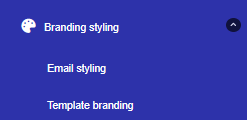
Branding → Templates
The current active version will be loaded automatically.
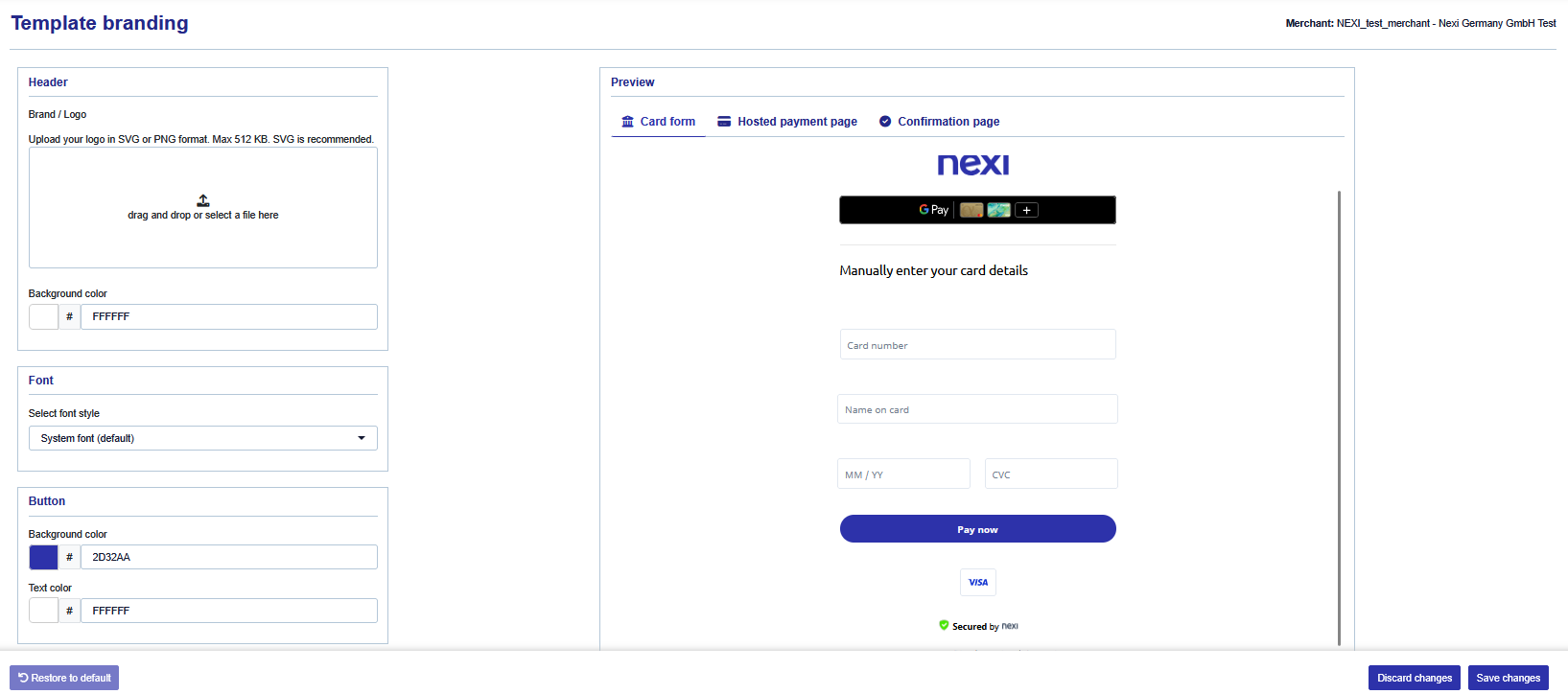
Step 2 – Modify branding elements
Users can update:
-
Logo
-
Font family
-
Header color
-
Button colors
-
Button style
Changes are applied to the preview instantly.
Step 3 – Preview changes
The preview allows users to validate branding across:
-
Hosted Payment Page (HPP)
-
Card Form (Creditcard payment page)
-
Confirmation page
The preview reflects the current draft state.
Step 4 – Save draft
Selecting Save changes:

-
Stores the current customization
-
Does not affect the live environment
-
Makes the draft available for future editing
Important
While a draft exists:
-
The draft version is always shown to the user
-
Published templates remain unchanged until publishing
Step 5 – Discard draft
Selecting Discard changes:
-
Removes all changes not saved to draft.
-
Restores the latest published version
Important
This action cannot be undone.
Step 6 – Publish template
Selecting Publish:

When a Draft is saved you will have the option to publish the template to live.
-
Pushes the current draft to the live environment
-
Makes the branding visible to end users
Publish permission
User must have:
Branding → Publish permission
Important
This action cannot be undone. Once the template is published it will published for the customer in the Payment Journey.
Template states
The Branding Tool supports two template states.
|
Draft |
Editable unpublished version |
|
Published |
Active live version |
Best practices
Logo recommendations
-
Use SVG for best scaling quality
-
Keep logo width optimized for header display
-
Use transparent backgrounds where possible
Color recommendations
-
Ensure sufficient contrast between button background and text
-
Validate accessibility standards for readability
Summary
The Branding Tool enables merchants to safely customize payment page branding while maintaining a controlled publish workflow.
Key capabilities include:
-
Centralized template customization
-
Draft and publish workflow
-
Real-time preview
-
Permission-controlled publishing
-
Consistent branding across payment pages