This procedure describes the steps to match the invoiced amounts by Nexi Germany. Please note, that this procedures are only applicable for Nexi DACH merchants.
Go to View transactions -> Payments -> View as transactions, where you can use the filter to generate the correct report, so that an export can be created to reconcile the figures on the monthly invoice.

An example invoice:
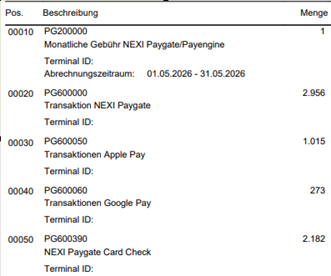
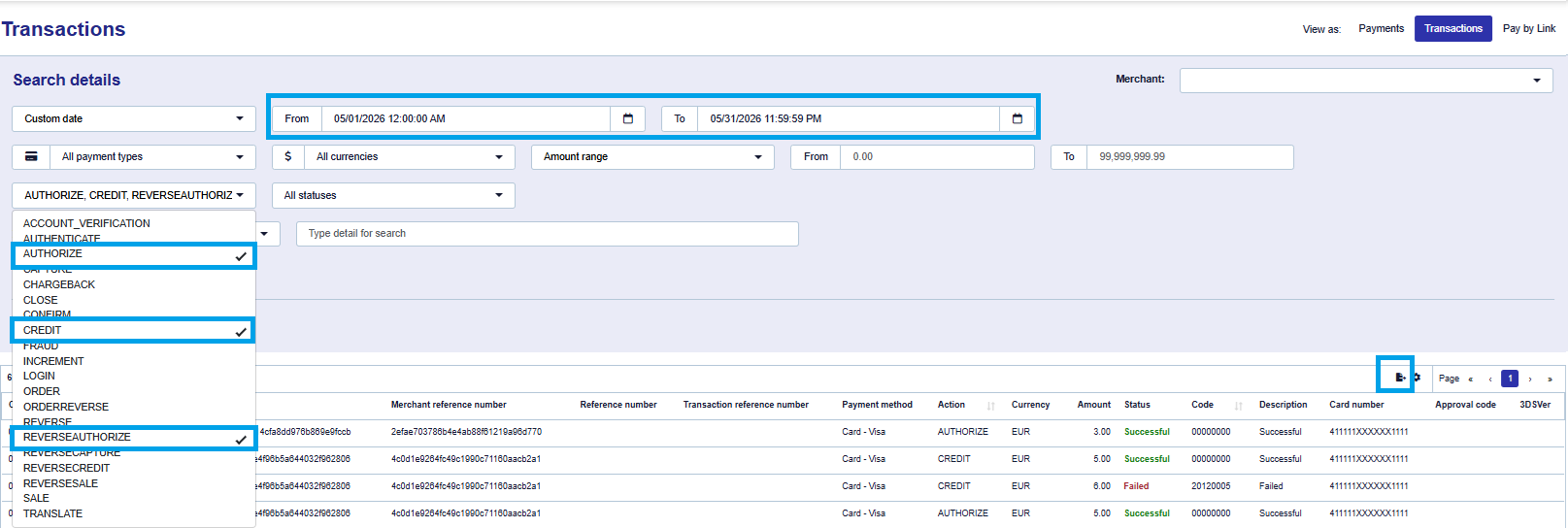
For NEXI Paygate transactions, the following actions must be taken to prepare the export:
-
Select the period as mentioned on the invoice
-
Select in the “all Actions dropdown” the following actions: Authorize, Credit and Reverseauthorize
-
Click on Search
Once you have selected ‘Search’, the results should be exported, as further filtering is required to calculate the correct counts:
In the Excel export, the entries ‘eWallet – Apple Pay’ and ‘eWallet – Google Pay’ in column G (‘Payment method’) should be hidden only if you offer these payment methods.
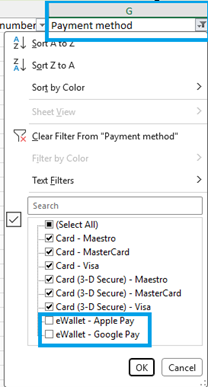
Based on this, you will get to the exact transaction count as mentioned on the invoice:

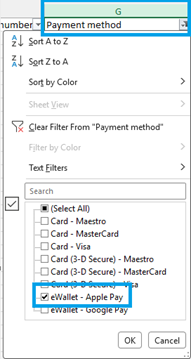
For Apple Pay you simply adjust the filter in column G to display Apple Pay:
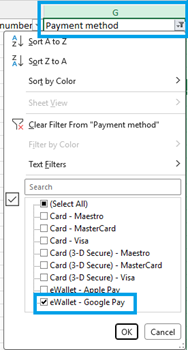
For Google Pay you simply adjust the filter in column G to display Google Pay:
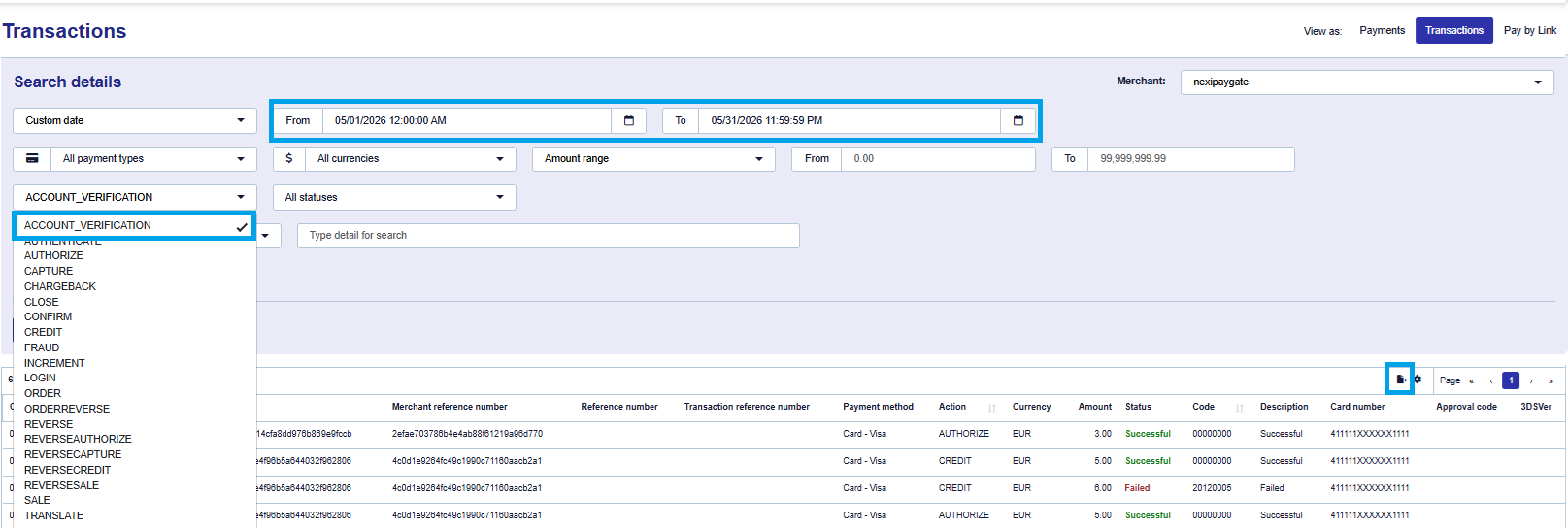
For Card Checks/Account Verification, the following filter should be applied: