
The "Process Terminal" → "Card terminal" tab allows you to create an operation (credit card payment). It gives you the option of initiating a credit or a payment for the credit card entered. Only one operation can be created using this method. If you wish to create several operations, you can use a batch file to do so.
Overview of the card terminal
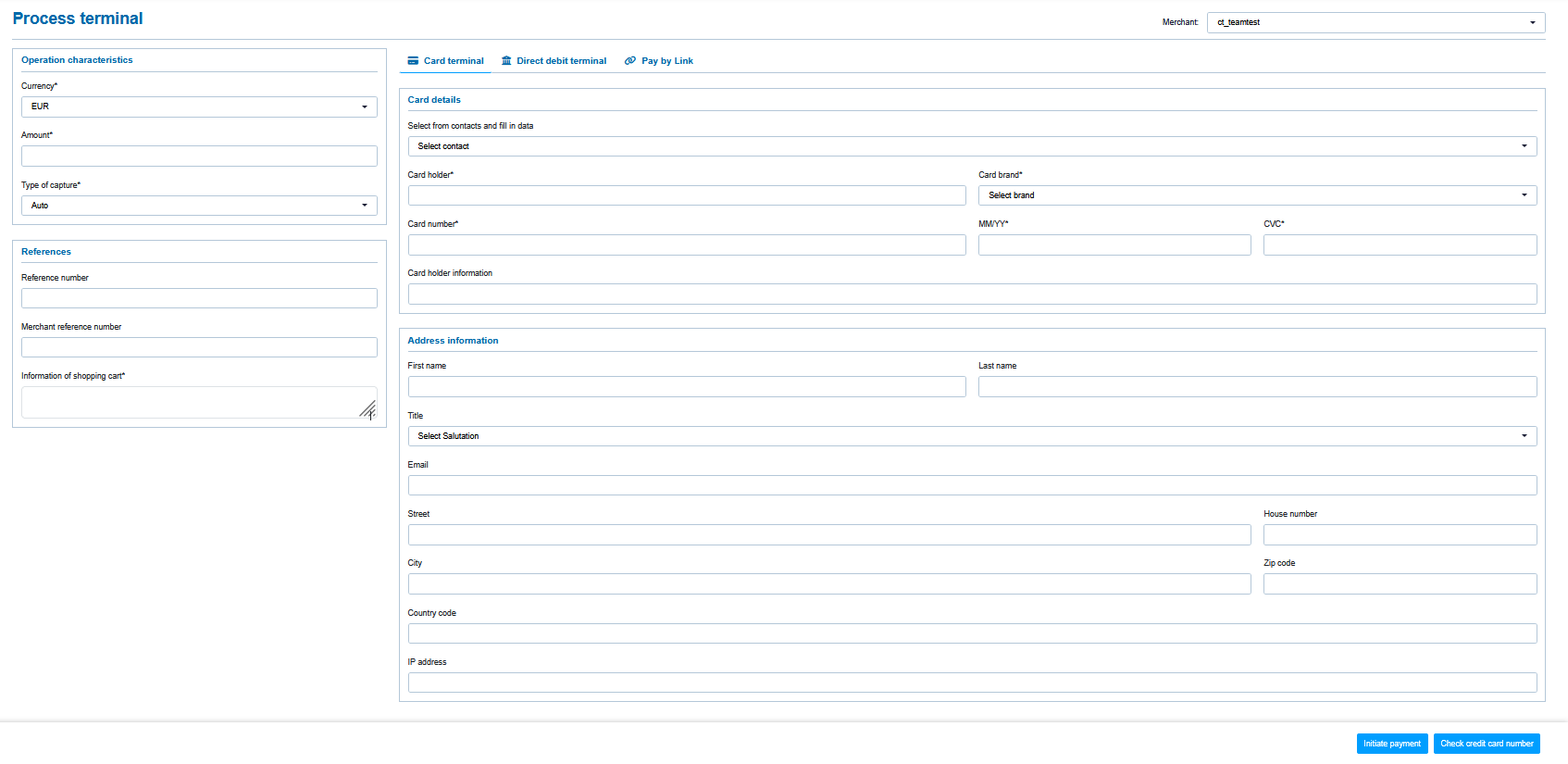
"Operation characteristics" input fields
"Card data" input fields
"Address Information" input fields
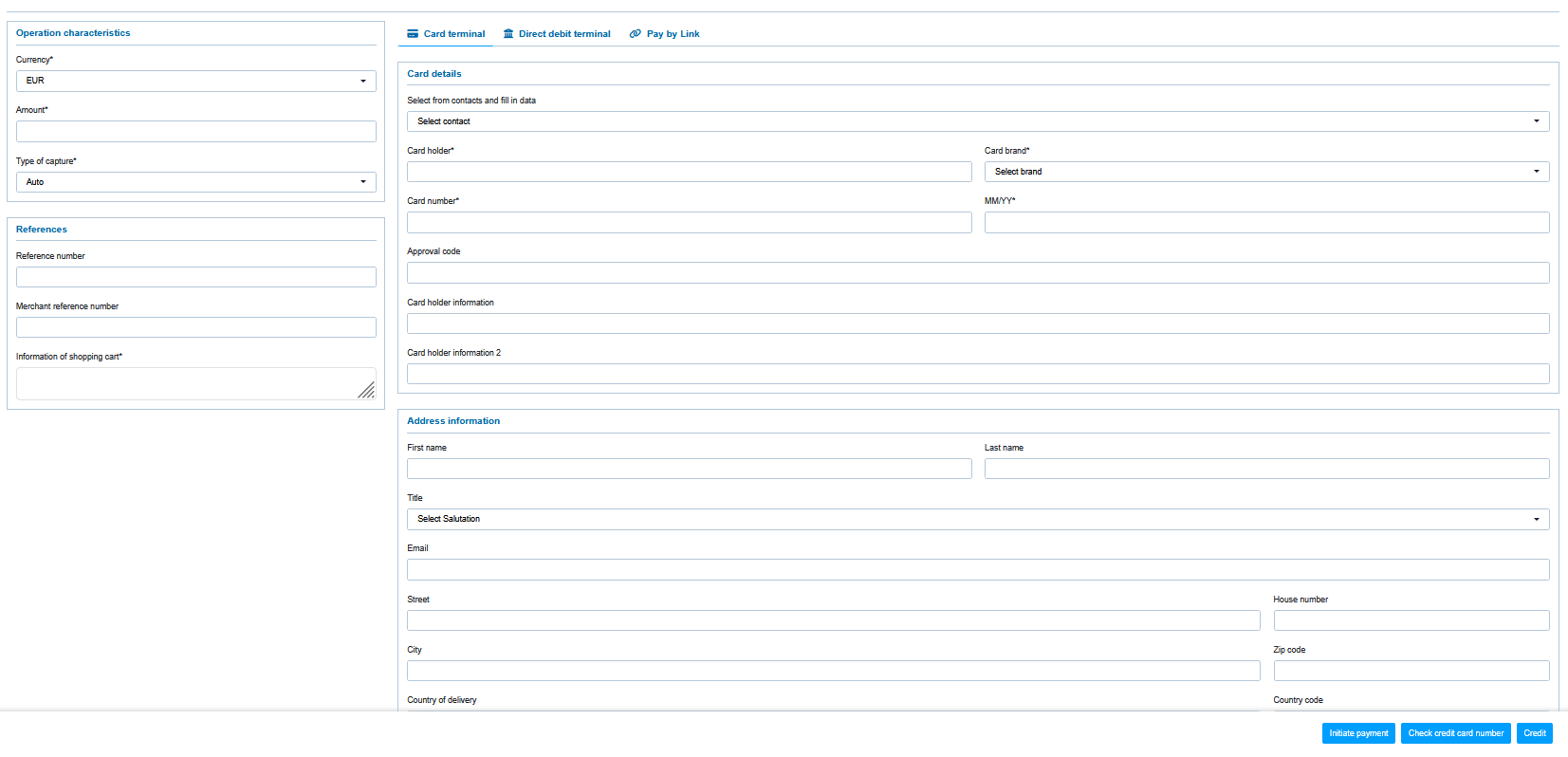
"Initiate Payment" button
"Check Credit card number" button
"Credit" button
Filling in the "Operation characteristics" input field
Operation characteristics describe the type and paymethod used for an operation. You can enter the following operation characteristics: Currency, amount, type of capture, reference number, merchant reference number and information about your shopping cart.
Selecting currency and amount
When you open the drop-down "Currency" menu, you will see all currencies that can be selected. You can enter the amount for the operation in the "Amount" input field.
"Amount" input field
The amount entered depends on the currency selected beforehand from the drop-down "Currency" menu. You must enter the amount in the largest currency unit using the decimal notation applicable for the currency (e.g. €10.50). Whether decimals are allowed depends on the respective currency.
Selecting the type of capture
The type of capture specifies when the payment process will be captured by the application in order to collect the authorised money.
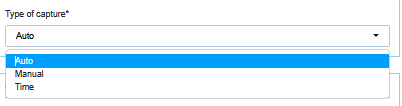
A description of the types of capture can be found in the "Types of capture" table below.
If you select the type of capture "Time" from the drop-down menu listing the types of capture, the input field without a name is activated below the type of capture. The time must be entered in hours until capture (whole number, 1 to 696).
"Manual" type of capture
Please contact NEXI Helpdesk if you wish to learn more about the options available for the "Manual" type of capture.
|
Type of capture |
Description |
|---|---|
|
Manual |
The amount is authorised (i.e. reserved), but the merchant has to capture the amount manually |
|
Auto |
The amount is authorised and captured straight away |
|
Time |
The amount is authorised and captured automatically after X hours |
Entering the reference number and merchant reference number
The reference number and the merchant reference number are used for unique identification of the payment process within the application.
The merchant reference number is used as a payment reference, which is specified in the corresponding EPA file issued by your bank.
Reference number
Please note that operations cannot be assigned or created without the input of a unique reference number (payment reference).
The application automatically generates the merchant reference number for every operation. The merchant reference number allows you identify each operation uniquely. You only need to enter the merchant reference number if you wish to add a credit or a payment to an operation that already exists.
Entering information about your shopping cart
This is where you can enter the merchandise or services that your customer ordered from you.
"Information about your shopping cart" input field
The "Information about your shopping cart" input field must be filled in according to the rules for the paymethod and the payment method provider applicable when the operation was created. The corresponding parameters in the paymethods are "OrderDesc" and "OrderDesc2".
Filling in "Card data" input fields
All of your customer’s credit card data is required to create the operation correctly. You can enter the following card data: Card holder, credit card brand, card number, expiry date (MM/YYYY) and card validation code.
Entering the credit card number
Please make sure that you enter all digits in the credit card number without spaces.
Creating a credit card payment or credit
|
Action |
Description |
|---|---|
|
Initiate payment |
Deduct the amount from the card data |
|
Credit |
Credit the amount to the card data |
|
Check credit card number |
check if entered credit card number is valid |
-
Click on the appropriate button to execute the action.
→ The application verifies the values entered. If the values are invalid, a message showing the reason why will appear in red. If the values are valid, the operation (credit card payment or a credit) is created.