
Multi-Factor Authentication (MFA) protects your Merchant Portal account by requiring a second verification step in addition to your password. Two methods are available:
|
Method |
How it works |
Best for |
|---|---|---|
|
Authentication via Mobile App |
A 6-digit code generated by an authenticator app on your mobile device |
Users with a smartphone; works without network coverage |
|
Authentication via Email OTP |
A 6-digit code sent to your registered email address |
Users without a smartphone |
MFA is mandatory. All users must complete MFA setup at their first login. The setup step cannot be skipped.
This page covers how to set up MFA, how to log in with it, and, for administrators, how to reset MFA for a user.
After 6 consecutive failed code entries, your account is locked for 30 minutes. The lock releases automatically; no administrator action is required. This applies during both setup and login.
Setting up MFA
You complete this once, at your first login.
Step 1: Log in
Enter your Merchant ID, username and password. You are redirected to the MFA setup page.
Step 2: Choose your method
Select Authentication via Mobile App or Authentication via Email OTP, then click Continue.
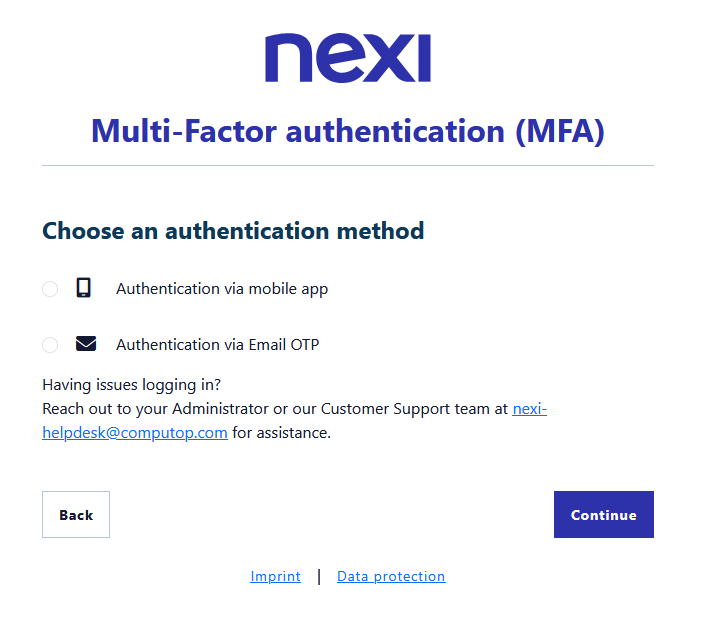
Note: Email address, first name and surname are mandatory for all Merchant Portal users, so this information is normally already stored on your account. In the rare case that no email address is on file, you are asked to enter and confirm it before continuing.
Option A: Authentication via Mobile App
-
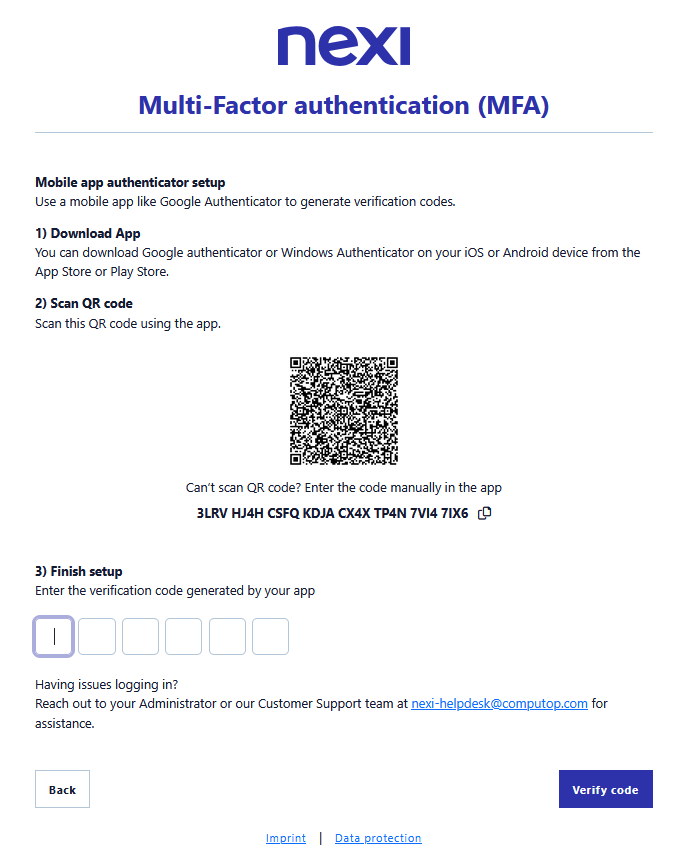
Install an authenticator app on your mobile device. Any TOTP-compatible app works, for example Google Authenticator, Microsoft Authenticator or Authy.
-
Register your account in the app, either by scanning the QR code shown on screen or by entering the setup key manually.
-
Enter the 6-digit code from your app and click
Verify codeto finish.
Option B: Authentication via Email OTP
-
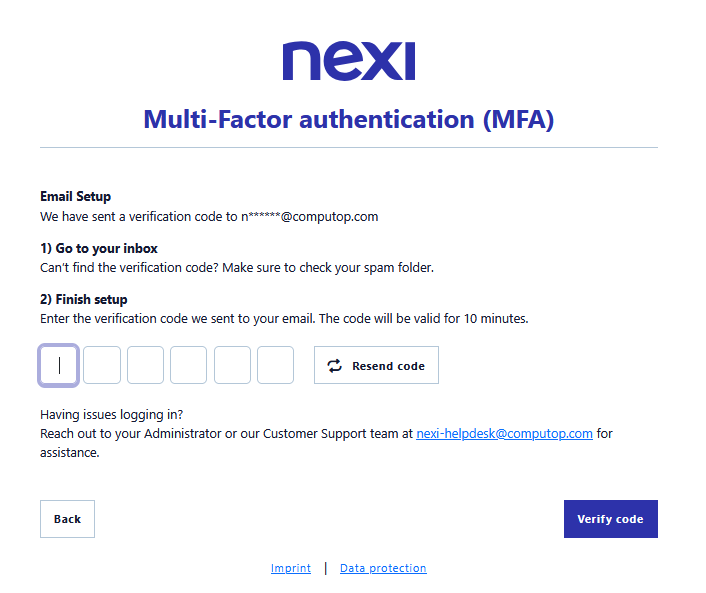
A 6-digit code is sent to your registered email address. Check your inbox, the code is valid for 10 minutes.
-
Enter the code and click
Verify codeto finish.
Note: If the code expires or does not arrive, click Resend code to request a new one.
Logging In with MFA
After setup, you are asked for a 6-digit code every time you log in.
With the mobile app
-
On the login page, enter your Merchant ID, username and password, then click Log In.
-
Open your authenticator app and read the current code for your Merchant Portal account.
-
Enter the code and click
Verify code.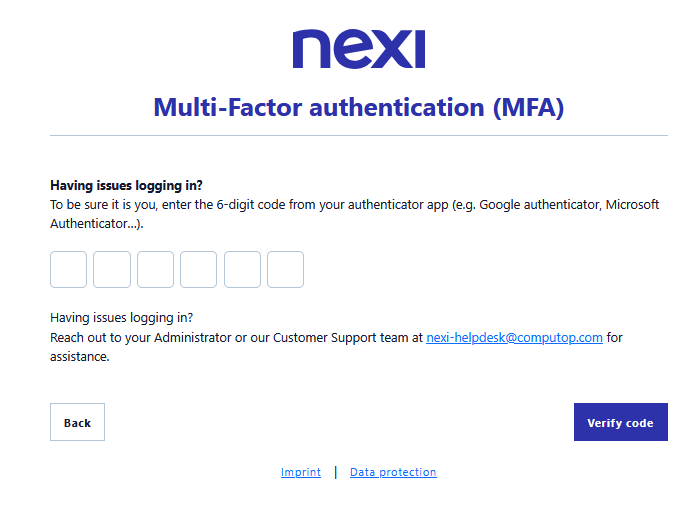
Note: Codes change every 30 seconds. If a code is rejected, wait for the next one rather than re-entering the same one, every failed entry counts toward the lockout.
With Email OTP
-
On the login page, enter your Merchant ID, username and password, then click Log In.
-
A 6-digit code is sent to your registered email address. Check your inbox, the code is valid for 10 minutes, and you can request a new one if it expires.
-
Enter the code and click
Verify code.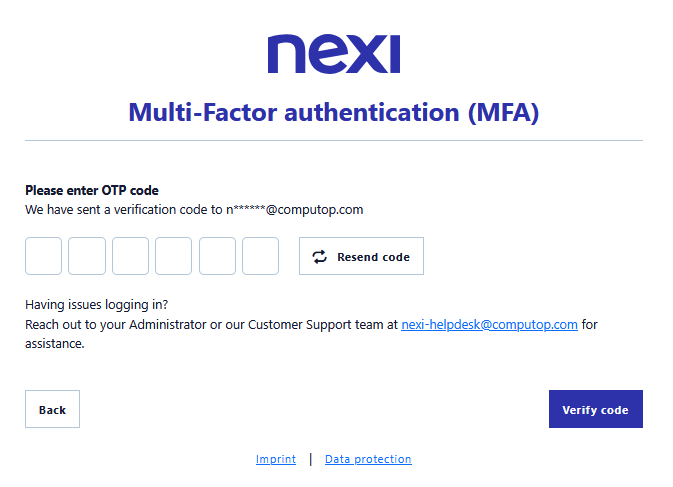
Cannot access your codes? If you have lost your phone, changed devices, or can no longer receive email at your registered address, ask your Merchant Portal administrator to reset your MFA. See Resetting MFA.
Resetting MFA (Administrators)
Administrators can reset a user's MFA from the Merchant Portal so the user can set up their authentication method again.
Use this when a user:
-
has lost access to their phone or authenticator app
-
can no longer receive email OTPs
-
needs to switch to a different method
Before you start: you need Administration → User Management permission, and you should decide which method the user will use afterwards.
Step 1: Open User Management
Go to Administration → User Management.
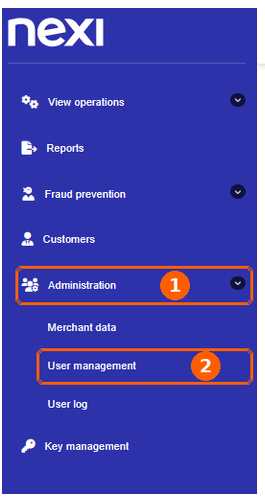
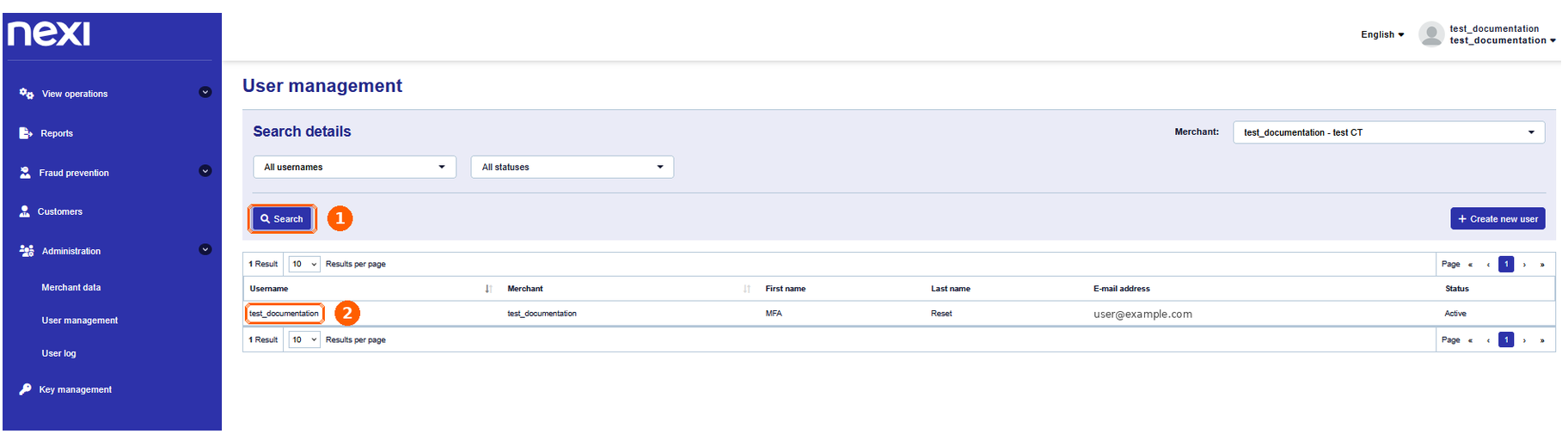
Step 2: Select the user
Select the merchant, then click Search. Click the username in the results to open the user's profile.
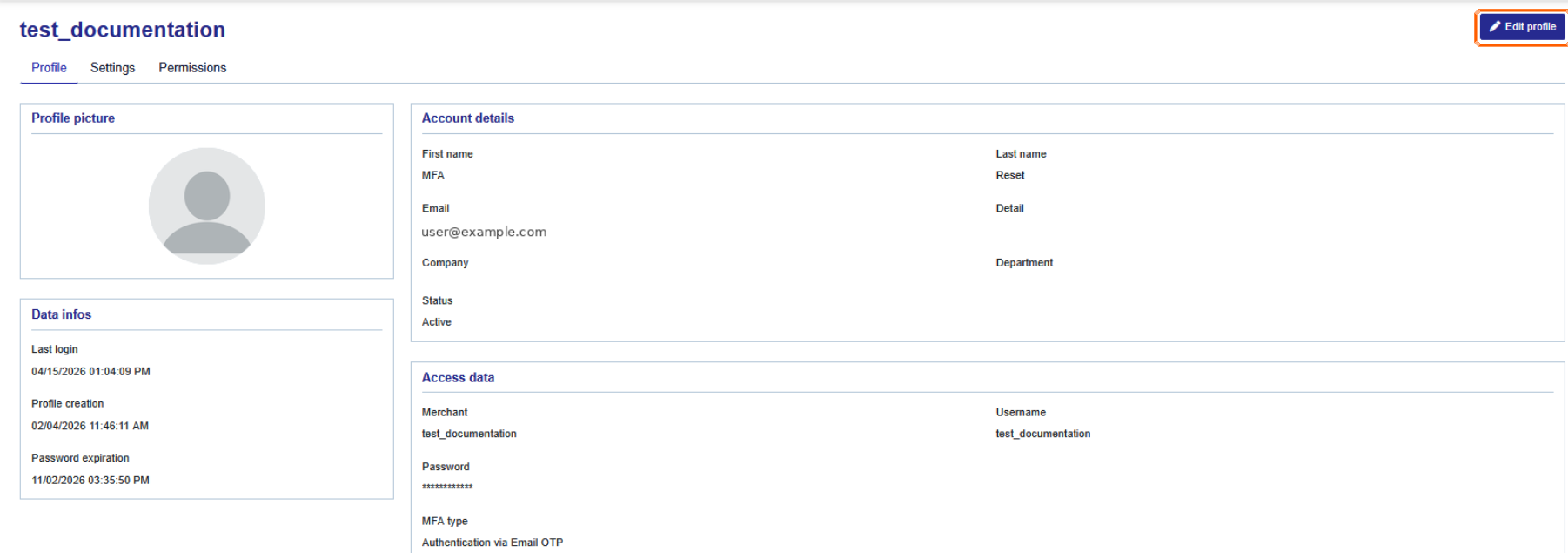
Step 3: Navigate to Profile
Navigate to Profile → Edit profile.
Step 4: Choose the reset option
Open the MFA type dropdown and choose one of the following, then click Save profile.
|
Option |
What the user must do at next login |
|---|---|
|
None: The user can choose the authentication method |
Choose their own method |
|
Reset: Authentication via mobile app |
Set up an authenticator app |
|
Reset: Authentication via Email OTP |
Authenticate via email one-time password |
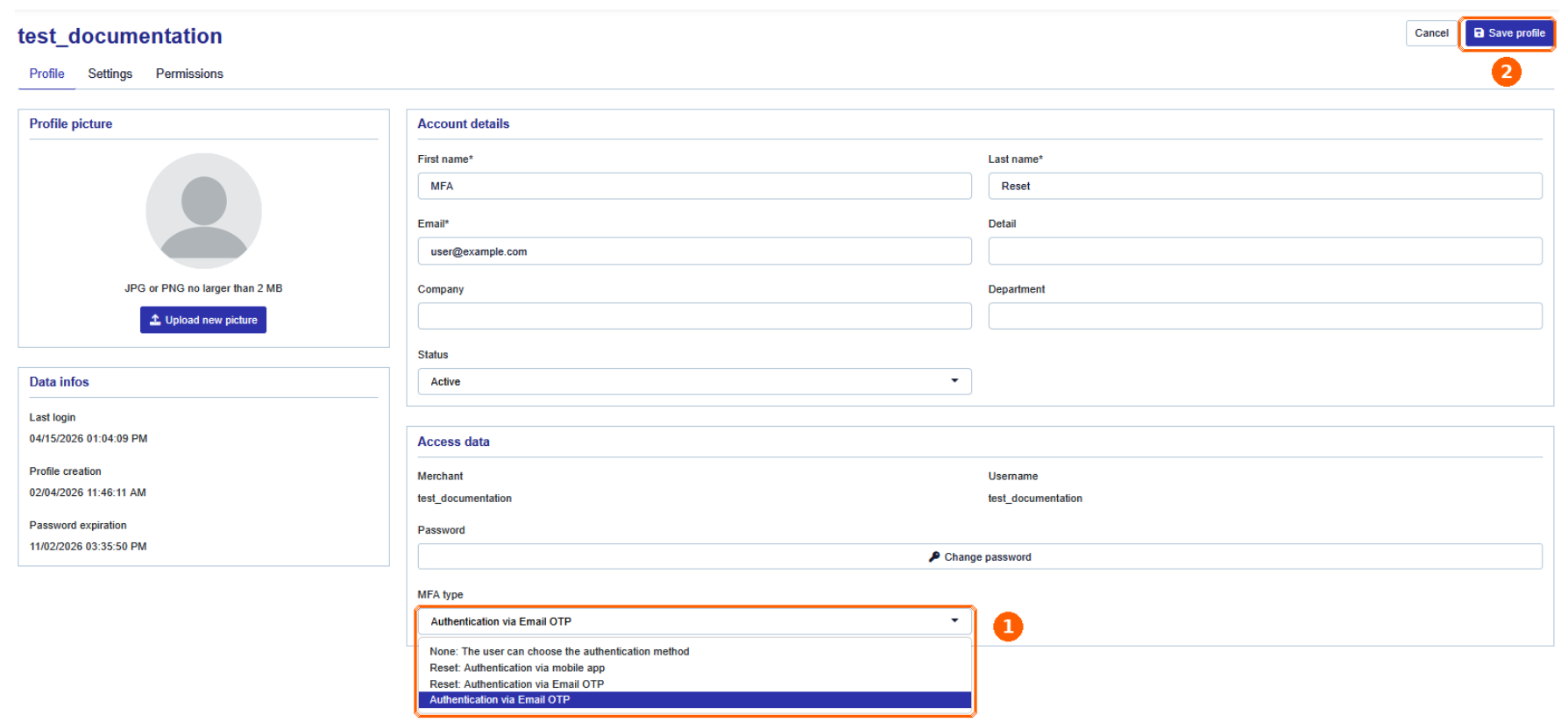
The reset applies immediately: the user's existing MFA registration is removed, an informational email is sent to them, and MFA setup is enforced at their next login. The user cannot skip it.
Before you reset: Verify the user's identity through a separate channel first. Every reset triggers an email notification to the user. Avoid unnecessary resets and monitor unusual activity.
Troubleshooting Tips
|
Problem |
Cause |
What to do |
|---|---|---|
|
Codes from the authenticator app are always rejected |
Your device clock has drifted from real time |
Enable automatic date and time on your device, then try the next code |
|
A code was rejected once |
The code expired while you were typing |
Wait for the app to generate a new code — do not re-enter the same one |
|
No email OTP arrives |
Filtered as spam, or the wrong address is stored on your account |
Check your spam folder, then ask your administrator to confirm the address on your profile |
|
Email OTPs arrive too late to use |
Mail routing delay at your organisation |
Ask your IT team to allowlist |
|
"Account locked" message |
6 consecutive failed code entries |
Wait 30 minutes and try again. The lock releases automatically |
|
Lost or replaced your phone |
The authenticator registration only existed on the old device |
Ask your administrator to reset your MFA |
|
You want to switch method |
— |
Ask your administrator to reset your MFA and select the new method |
|
You have no smartphone |
— |
Ask your administrator to reset your MFA to Email OTP |
Getting help
If your issue is not listed here, reach out to your Administrator or our Customer Support team for assistance.