
You can have velocity checks configured in your Paygate as an additional security measure.
Velocity checks
Velocity checks can only be created and viewed by NEXI Helpdesk. Please contact NEXI Helpdesk to have velocity checks changed, created or removed.
Velocity checks are tools used to check parameters that are automatically queried each time before an operation is created. A rule could, for example, be that a maximum of two payments are permitted using one credit card within a set period of time. When the maximum number has been exceeded in the set period of time, a temporary list entry with the card, account or device data is automatically created in the SecurePay black list. These card, account or device data cannot be used to create operations any more for the specified time. Once the set time has expired, the temporary list entry is automatically removed from the SecurePay black list again.
You can use the tab "Fraud prevention" → "Black List SecurePay" to search for and filter blacklisted card, account or device data. This allows, for example, card, account or device data temporarily blacklisted by one of your support staff to be enabled again. You cannot create temporary list entries. The application does, however, provide you with the option of blacklisting card, account or device data permanently in the tab "Fraud prevention" → Black list".
Overview of the search criteria
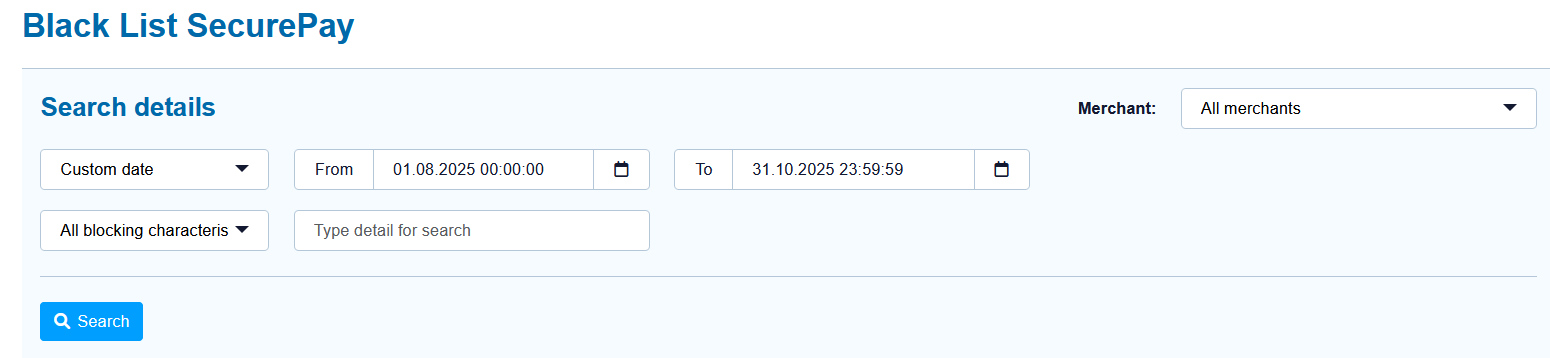
When you click in the input fields for the date, a calendar opens in which you can select a date and time time for the search.
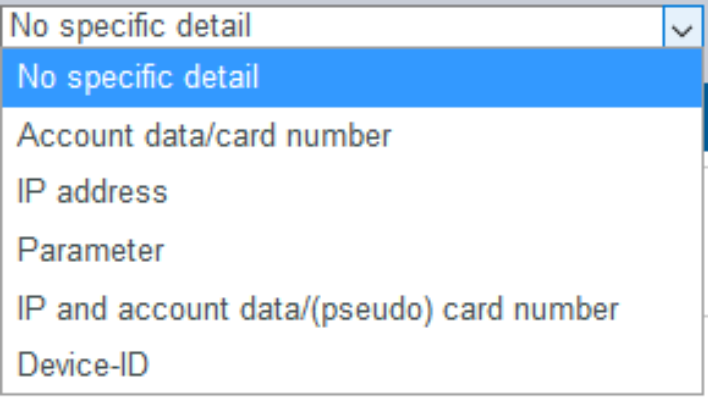
Selecting specific details
Descriptions of the specific details can be found in the "Specific detail" table below.
Input field next to the drop-down "No specific detail" menu.
The input field next to the drop-down "No specific detail" menu allows you to narrow the search to a character string. The character string that is entered depends on the specific detail selected in the drop-down "No specific detail" menu.
|
Specific Detail |
Description |
|---|---|
|
Account data/card number |
The account number is a country-specific number and is used to identify a bank account. The card number is the number on the bank card that allows a unique assignment. |
|
IP address |
The IP address is a standardised numerical label that allows every end device connected to the internet to be identified uniquely |
|
Parameter |
The velocity check that was violated |
|
IP and account data/(pseudo) card number |
The IP of the device, account data or card number of the customer |
|
Device ID |
The device ID is the ID of the device in the application, which allows a unique assignment of the end device |
Opening the detailed view of a SecurePay list entry
You can open the detailed view for every list entry in the search results. More information about the blacklisting characteristics are shown to you in the detailed view. Furthermore, the detailed view of the list entry allows you to revoke the blacklisting, or to exempt the card, account or device data in the list entry from the velocity checks.
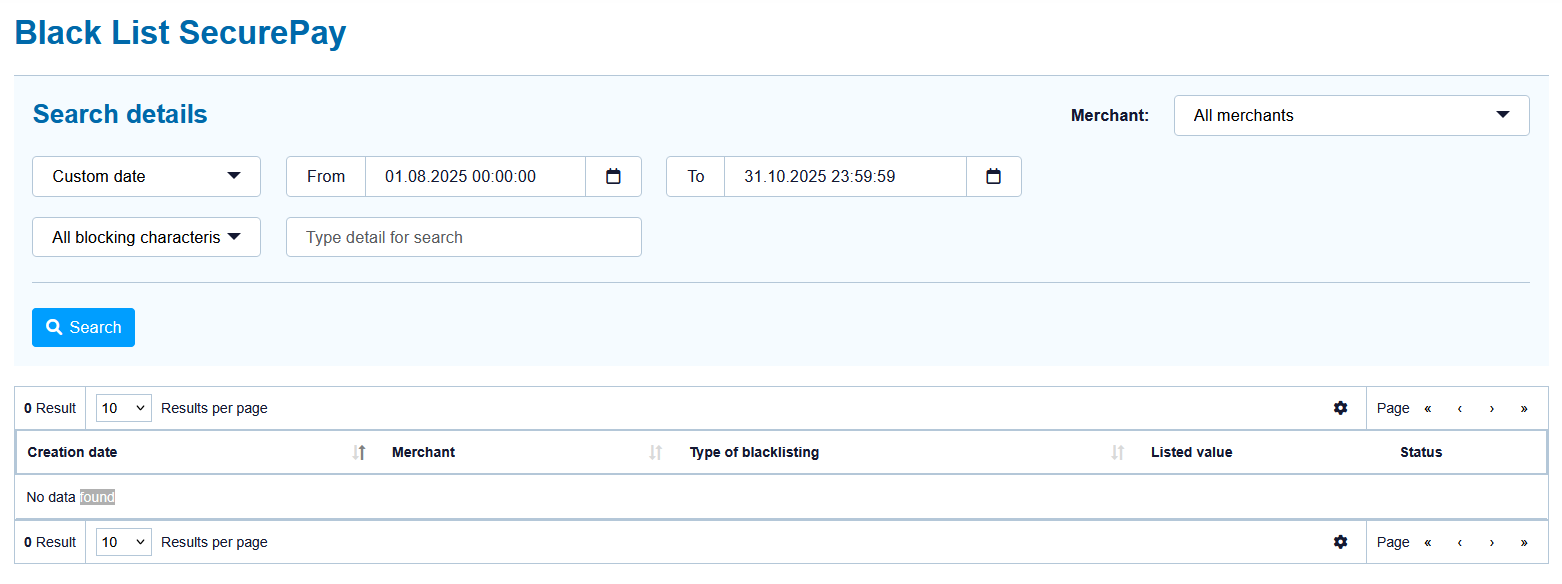
Proceed as follows to open the detailed view of the list entry:
-
Select the period.
-
Select the blacklisting characteristics.
-
Click on the "Search and Filter" button.
→ The application verifies the values entered. If the values are invalid, a message showing the reason why will appear in red. If the values are valid, the search results will be shown.

-
Click on the value listed for the required list entry in the "Listed value" column.
→ The detailed view of the list entry opens.
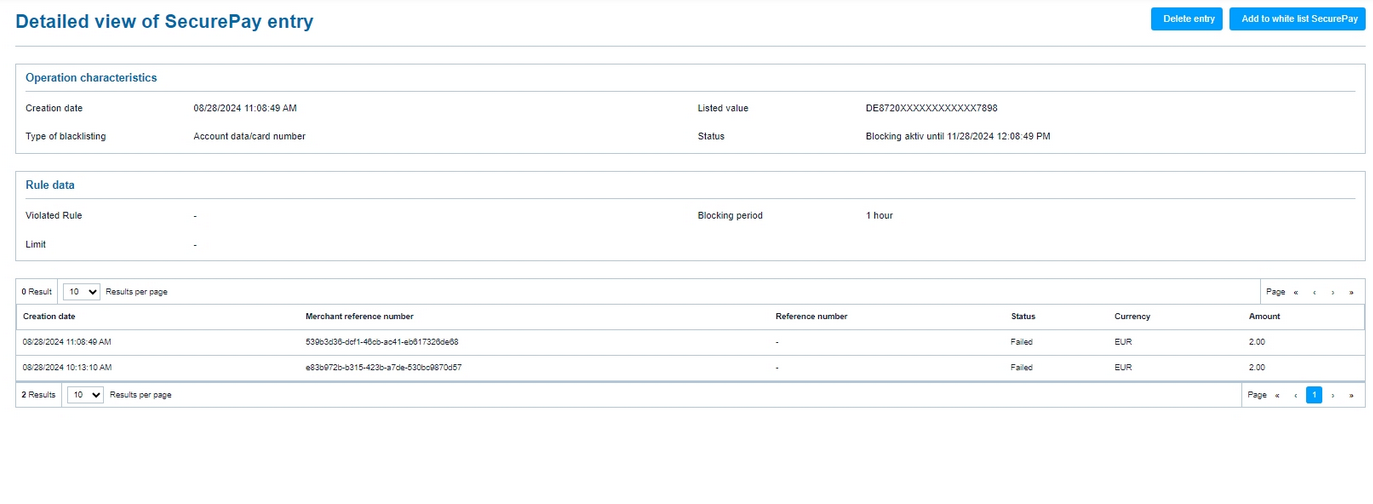
The "Add to SecurePay white list" button allows you to use the card, account or device data to create a list entry in the SecurePay white list. More information about the SecurePay white list can be found in the corresponding chapter.
The table shows you all the OK and failed operations that were carried out using the card, account or device data.
You can use the "Delete entry" button to delete the list entry from the SecurePay white list.
Velocity checks
Velocity checks can only be created and viewed by NEXI Helpdesk. Please contact NEXI Helpdesk to change, create or remove velocity checks.
Exporting search results
You can export the search results as an Excel file for further processing by clicking on the

on top of the grid.